We do not respond to voicemails. If we do not answer, we are on the line with another client. Please text or email us. We respond throughout the day or attempt to call again at another time.
For Mental Health & Substance Abuse Facilities
Empower Your Facility’s Online Compliance and Staff Trainings
Affordable, Efficient, and Simple: BaysideCEU’s Facility CE Membership is Your Facility’s All-in-One Compliance & Staff Training Solution
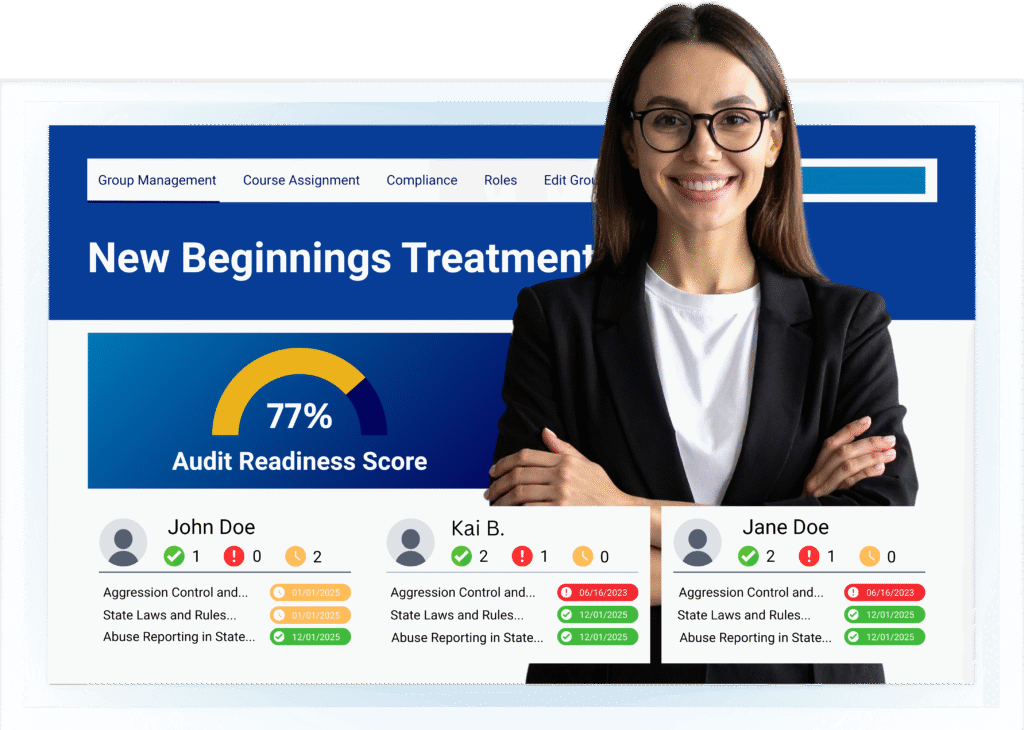
Everything Your Facility Needs to Be Compliant
We’re Actually Here to Help
BaysideCEU’s dedicated support team and comprehensive tutorial library ensures you get the most out of your membership.
Text Tutorials (Recommended)
Detailed Documentation for Group Leaders & Employees
Video Tutorials / Demos
Quick and Comprehensive Video Guides / Demos
Contact Customer Support
Text, Email, or Call us with any questions or concerns
Interested in the Peace-Of-Mind BaysideCEU offers?
To get started TODAY, find the right plan for your training and compliance needs:
$55.00
Per Employee / Annually
BaysideCEU Facility Membership:
Empower your Facility with the most affordable Compliance Management and Staff Training service in the industry
Important Note: This is not a cheaper version of the Custom Facility Bundle. This option is for Mental Health & Substance Abuse Facilities who want to provide state-mandated trainings to their employees, track completions effectively, and manage the facilities compliance with ease.
Facilities that choose this option receive all CE courses offered and compliance services.
$89.00
Individual Employee Purchase
Custom Facility Bundle:
Request a Custom Bundle for Your Facility
for Employees to purchase
Important Note: This is not an upgraded version of the Facility Membership. This is an option for Facilities who do not want to pay for mandated trainings / compliance management but still want to direct their Employees to an accredited provider.
Facilities that choose this option will receive any CE courses they choose, but will NOT receive any compliance management services.
What are Facilities saying about
baysideCEU’s facility membership?
BaysideCEU currently serves 200+ Mental Health and Substance Abuse Facilities Across the Country, here is what a few of them have to say:


Included with Facility Membership
Stay Audit Ready with
Audit IQ
Your facility’s automated solution for organizing, monitoring, and maintaining mandated training compliance. Bring order, automation, and accuracy to your facility.
What is Audit-IQ?
Audit IQ is a full-service compliance management system that allows facilities to automatically track and manage employee training requirements, simplifying training oversight and significantly reducing administrative workload.
Role-Based Organization
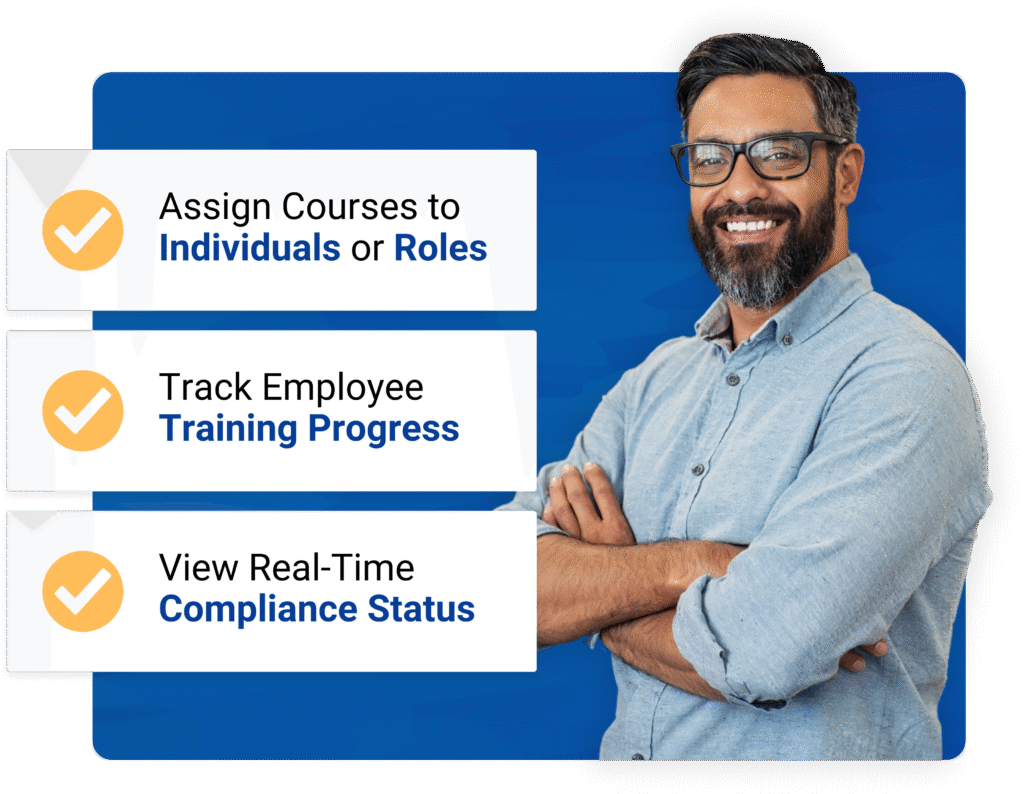
Assign employees to customized roles, or assign specific trainings to individuals so each person is assigned their required coursework.
Automated Course Tracking
Track every staff member’s training requirements by role or individual, monitor completion, & send automatic notifications.
Real-Time Compliance Status
Facilities can see whether employees are compliant, due soon, or overdue for required trainings.
Compliance Management Made Easy
Audit IQ provides a clear, intuitive 4-step process to automate compliance.
Creating and Editing Roles
The first step in using Audit IQ is to assign coursework to individual employees, or by creating roles that represent a license, certification, or job-role for employees in your facility (e.g., “Counselor,” “Direct Care Staff,” “New Staff”). There are 2 ways to assign coursework:
Option 1 – Assign Courses by Role
- In the Group Management Dashboard menu, select Edit Roles under the Compliance drop-down.
- Enter the name of the role you would like to create (e.g., “Counselor,” “Direct Care Staff,” “New Staff”).
- Search for and select courses for that role.
- Click Save Changes.
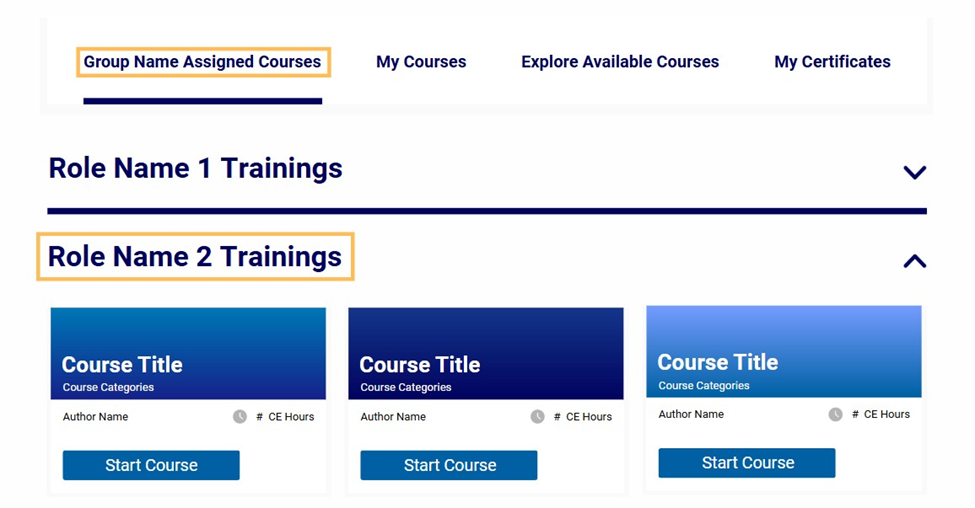
Roles appear as drop-down menus containing assigned courses under each enrolled user’s Dashboard tab with the name Group Name Assigned Courses. (Image Below)
Option 2: Assign Courses to Individuals
- In the Group Management Dashboard menu, select Individual Course Assignment under the Compliance drop-down.
- Enter the employee’s name in the Select a User field.
- Search for and select courses for this employee.
- Click Save Changes.
Courses assigned by Individual Course Assignment will only appear for the employee who was assigned the coursework under the Group Name Assigned Courses tab. (Image Below)
Next Step: Divide Staff into Roles
Divide Employees into Roles
The second step in preparing Audit IQ is to assign Employees to their Roles. In the previous step, Roles were created and coursework was assigned. Now, employees must be labeled as their role in order to have their trainings tracked.
Step 1 – Click Group Management using the Group Management Menu
This will bring you to the Staff/Employee Roster. This is where you manage your Facility’s employees. (e.g., Add Users, Password Resets, Role Assignment)
Step 2 – Click the Manage Drop-Down Menu
This opens a menu of options for managing your Employee Roster.
Step 3 – Select Bulk Role Edit
In this menu, use the Select Members and Select Roles menus to assign your employees to a role. (For example, Employee 1 & 2 are Nurses, Employee 3 & 4 are Counselors.)
Next Step: Course Scheduling
Course Scheduling
Step 1 – Click Course Schedule using the Group Management Menu
The Course Schedule menu is where you will be able to set up Rules, which are customizable tracking parameters you can use to track coursework based on Roles or Individual Employees. There are two ways to setup Rules:
Option 1 – Rule Type: By Role
This option is to assign coursework based on mandated requirements for a role (e.g., “Counselor,” “Direct Care Staff,” “New Staff”).
For example, Counselors are required to take Aggression Control yearly. Rule Type: By Role allows you to create a Course Schedule for Aggression Control for all of your employees who are assigned to the Counselor Role, activating tracking for when their last individual completion was, when their next completions are due, and automatic notifications to each individual.
Option 2 – Rule Type: By Individual
This option follows the same functionality but is instead assigned by Individual instead of Role. Allowing you to divide certain coursework to employees based on individual requirements.
Step 2 – Input Rule Parameters
- Rule Name: The name or label of the Course Schedule (Ex. Counselor Yearly)
- Rule Type: How the Rule applies (By Role or By Individual)
Step 3 – Assign Coursework and Occurrence
Click Add Course and select any number of trainings to assign to the individual or role.
From there, set how often the course is required to be completed by mandates (Ex. Yearly). And finally, select how many days before the due date you would like your employee to be notified via email.
(All Group Leaders can also be notified of upcoming due dates under Edit Group Details)
Step 4 – Click Add Rule to Finalize Course Schedules
Next Step: Track Compliance
Compliance Tracking
Step 1 – Click Compliance / AuditIQ using the Group Management Menu
This is where all existing Course Schedules will be displayed. This menu allows you to view if an employee is fully compliant, when they have a training due, and finally if an employee is non-compliant due to a missing training. There are 3 existing Course Status:
- Overdue – The employee is non-compliant and has not taken this training
- Compliant – The employee is up to date on this training
- Due Soon – The employee is due for this training based on your set parameters
